
IPTVIQ on iPad.
Room for the whole library.
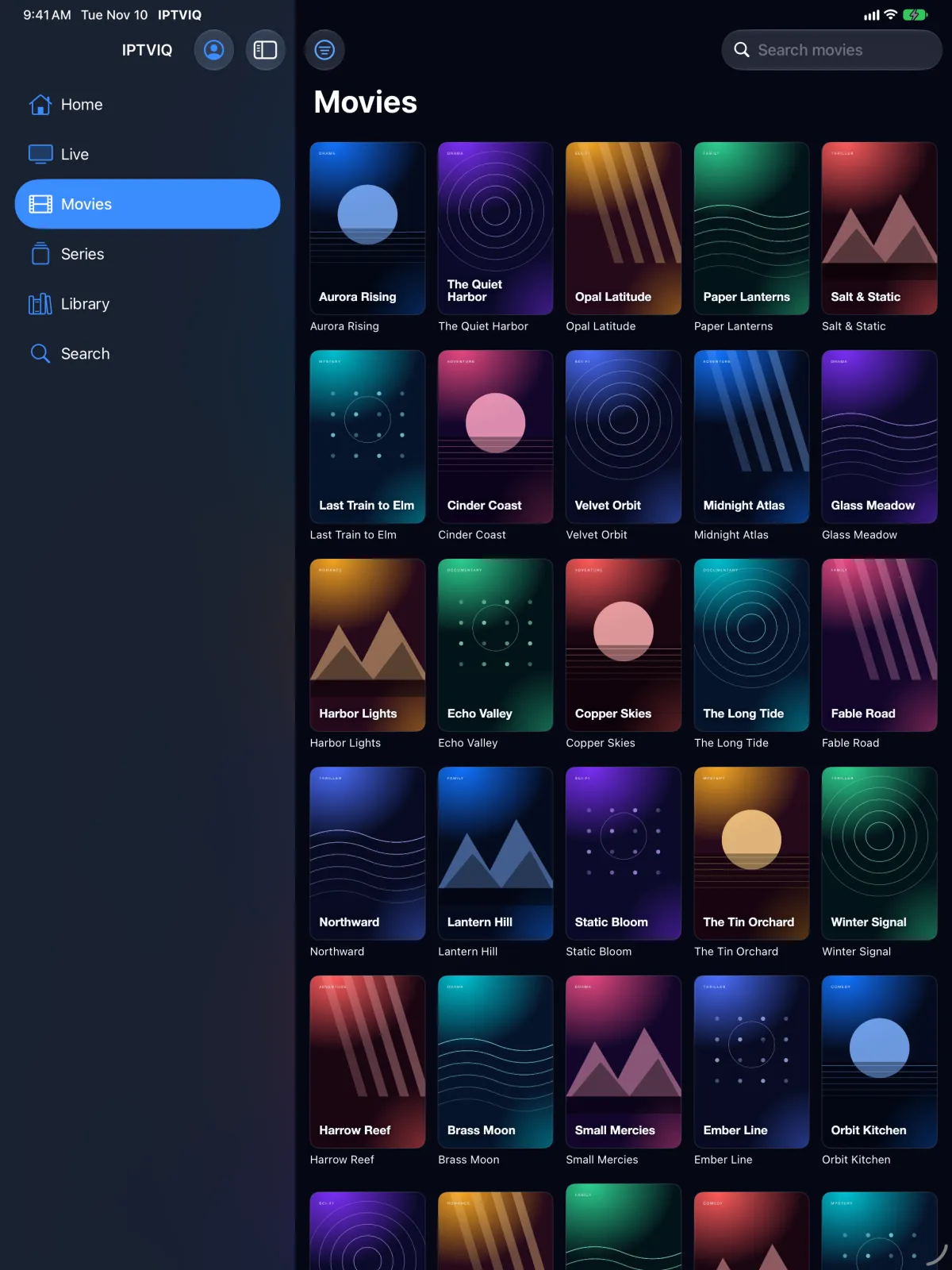
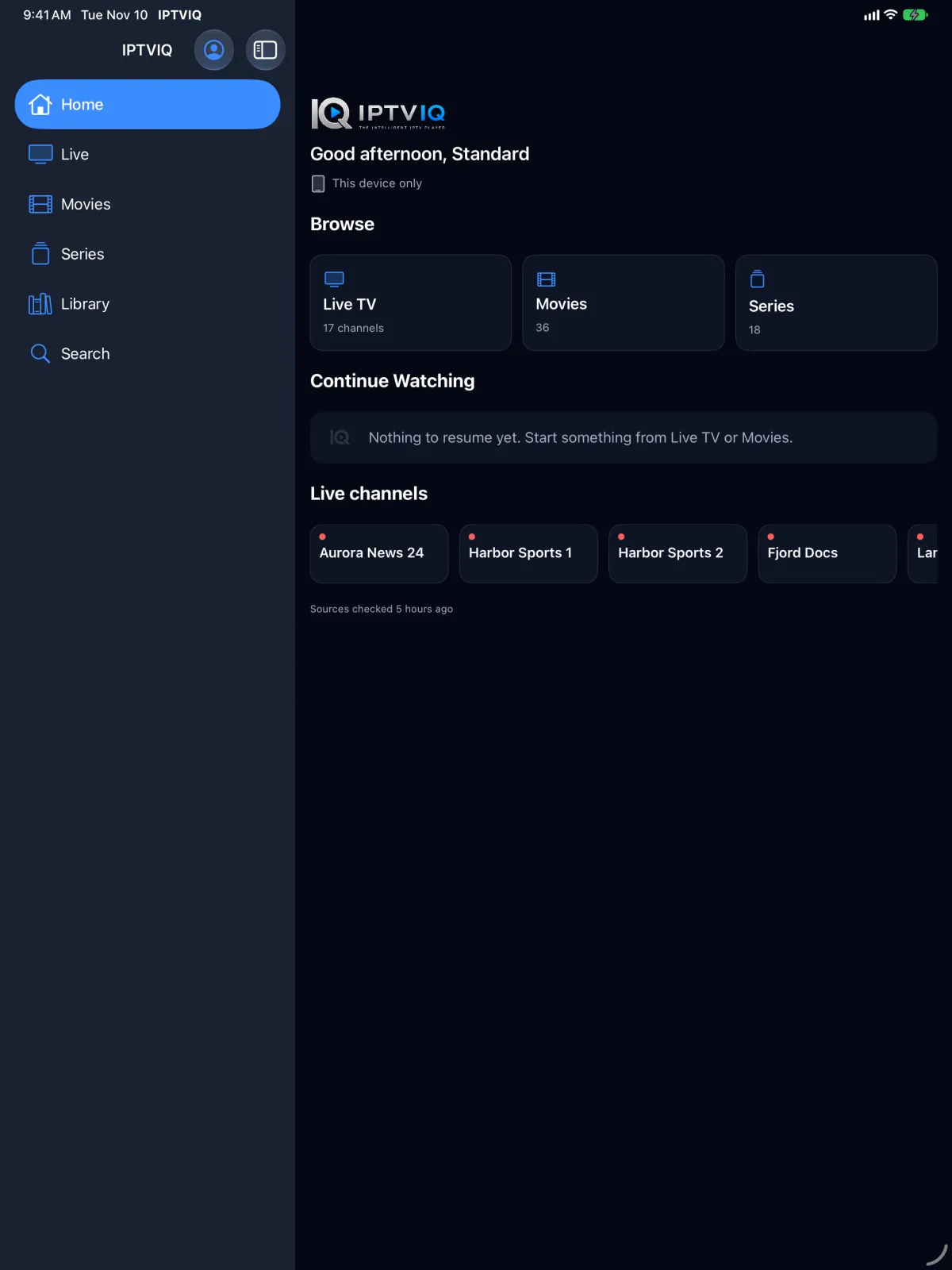
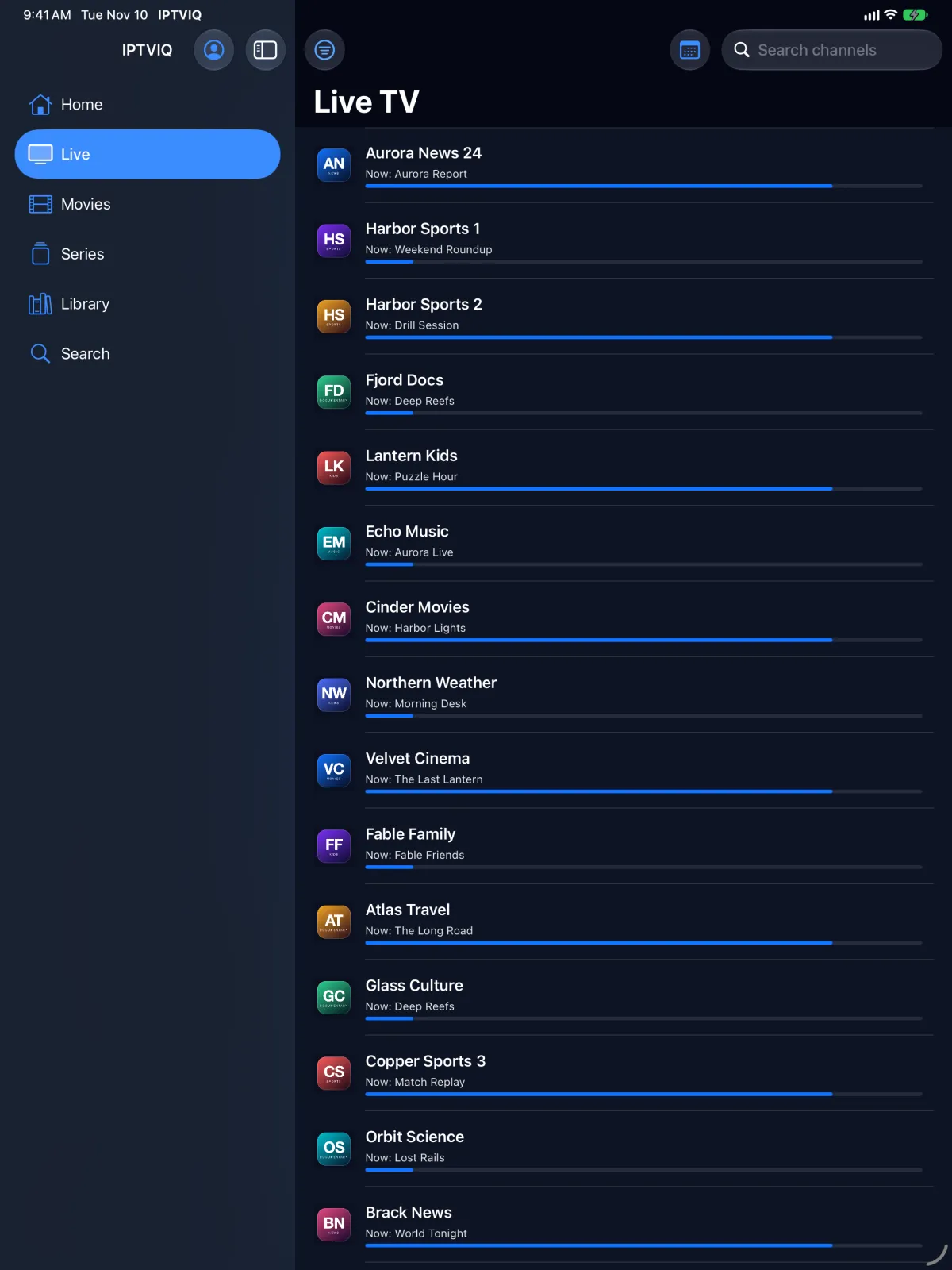
A native IPTV player for iPad, for the sources you already have. A sidebar keeps Home, Live, Movies, Series, Library and Search one tap away, in portrait or landscape.
IPTVIQ is a media player. It does not include, sell or supply any channel, playlist or subscription: you bring a source you are authorized to use.
Where iPad actually stands.
We update this section when the real status changes, never before.
A sidebar for the bigger screen.
On iPad, IPTVIQ uses a sidebar instead of a tab bar, with Home, Live, Movies, Series, Library and Search always in view. Turn the iPad and the layout follows, in portrait and landscape.
Everything from your source, organised.
Live channels show what is on now, with a guide for Xtream sources. Movies and Series are poster grids, series by season and episode, and the Library keeps Continue Watching and your Watchlist.
Full Screen in the way you hold it.
On iPad, Full Screen keeps the orientation you are holding — portrait or landscape. Switch between Fit and Fill, and skip back or forward 10 seconds in movies and episodes.
Profiles and a Parental PIN.
Protect settings with a Parental PIN. With Premium, add more sources and profiles, including Kids profiles that only see what a parent approves.
Install, then add your source.
- Install. Download IPTVIQ from the App Store on your iPad. The same App Store listing also offers IPTVIQ for Mac, Apple TV and Apple Vision Pro.
- Open IPTVIQ. A new install starts with an empty library. IPTVIQ never ships with channels, playlists or sources.
- Add your source. Enter your provider's Xtream Codes login, or the link to an M3U/M3U8 playlist. You can manage sources later in Settings.
- Browse. Live TV, Movies and Series fill in from your source. Use only sources you are authorized to use.
- No account needed. The iPhone and iPad app works without registering; sign-in to an IPTVIQ account is not part of this version.
More help: FAQ, Compatibility, Support, and the pages for iPhone, iPad, iPhone Duo, Mac, Apple TV and Apple Vision Pro.